
Guides · How-to
Auto-Generate Video Captions
Auto-generate video captions from speech, then burn them in or export SRT. A practical workflow for Reels, TikTok, Shorts, and YouTube.
By Caption-Lagao · Updated 2026-09-28 · 6 min read
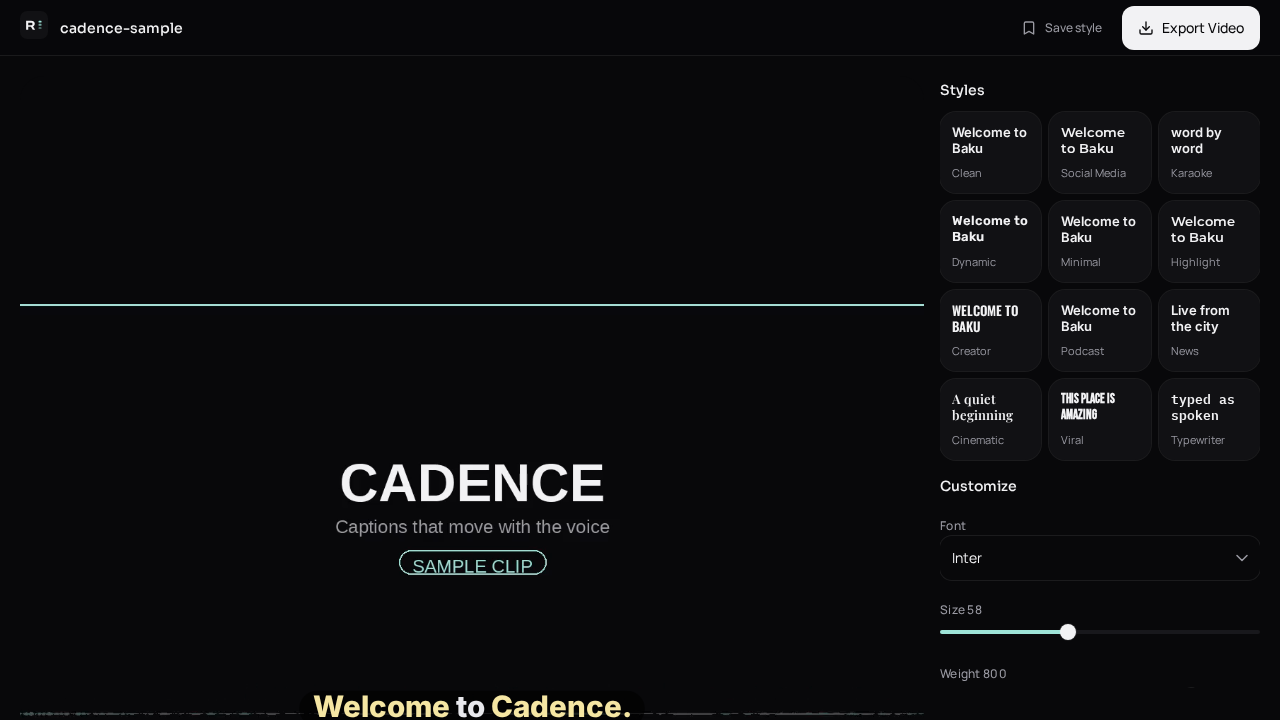
Auto-generate means the machine writes the first transcript. It does not mean you skip placement, script choice, or a mute check. Those three decisions are why two clips with the same voice perform differently.
What is the generate workflow?
- Finish the cut in your editor.
- Upload the export to Caption-Lagao.
- Choose the spoken language. Mixed covers Urdu plus English.
- Generate, then read on mute.
- Export MP4, SRT, or both.
Burn-in or subtitle file?
Burn-in if the video will be watched inside TikTok, Reels, Shorts, or WhatsApp. SRT if YouTube or a course player will offer a CC button. Many creators export both from the same generate so the words match.
What should I not auto-generate?
Do not auto-generate a caption for a photo, a meme, or a thumbnail. Those need a designed line, not a transcript. Do not auto-generate over a video that still has jump cuts to make — you will throw the times away.
Questions people ask
Can I generate captions from a script instead of audio?
This tool uses the audio. If the voice and the script disagree, the audio wins.
Will generating again delete my style?
A new generate replaces the transcript. Set the style after the words are right, then export.
Do I need a YouTube account here?
No. Download the file and upload it in YouTube yourself.
What if two people talk?
You still get the words. Speaker labels are not the product. Split lines if the overlap is unreadable.
Generate captions on your clip
Upload stays on this device. Export a burned-in MP4 and SRT with no watermark. No account required.