
Guides · Subtitles
How to Add Subtitles to a Video Free
Add subtitles to a video online for free. Generate automatic subtitles from speech, edit them, and export SRT or a burned-in MP4 — no watermark.
By Caption-Lagao · Updated 2026-09-12 · 4 min read
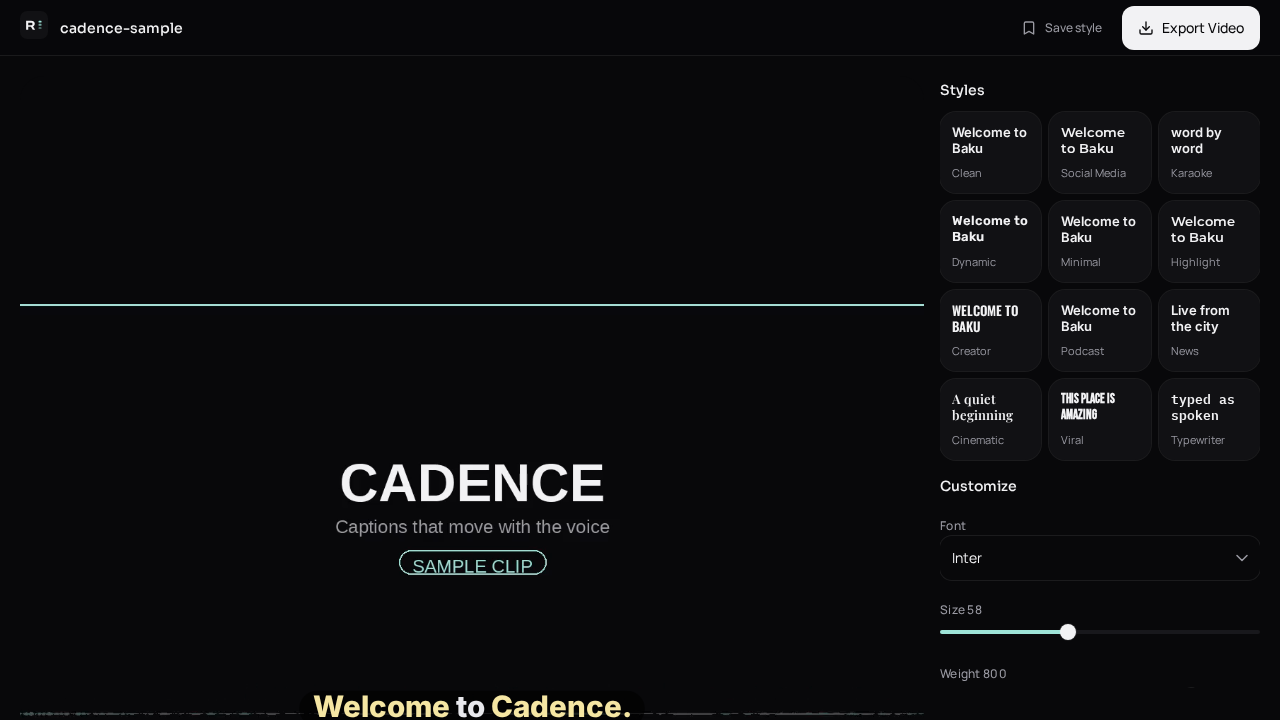
Subtitles are the spoken words, timed to the video. You can burn them into the picture so mute viewers still read them, or download SRT and upload that file as YouTube’s subtitle track. Caption-Lagao does both from one generate pass.
This is not a photo-caption or Instagram-quote tool. It transcribes speech that is already on the file.
Captions vs subtitles
- Burned-in captions: pixels in the MP4. Required for TikTok, Reels, and Shorts — viewers rarely toggle CC.
- Subtitle file (SRT/VTT): a separate track. Use this for YouTube long-form and anywhere a player can show CC.
- Karaoke highlighting only survives in the burned-in MP4. SRT carries text and times, not fill color.
Steps
- Save the clip as MP4, MOV, or WEBM.
- Drop it on Caption-Lagao. The video stays on this device.
- Generate captions. Speech is transcribed with word timestamps.
- Read the draft on mute. Fix names, numbers, and mixed Urdu–English lines.
- Export SRT (or VTT) for a subtitle track, and/or a burned-in MP4 for mute autoplay.
Free, automatic, no watermark
You do not need an account or an app download. The first pass is automatic; treat it as a draft. Exports do not add a Caption-Lagao watermark.
If the speech is Urdu or Hinglish
- Urdu talking clips: prefer Roman Urdu so mute viewers can scan Latin letters.
- Mixed Hindi–English: keep Hinglish in Latin letters, not Devanagari.
- English brand names should stay English in every case.
Generate captions on your clip
Upload stays on this device. Export a burned-in MP4 and SRT with no watermark. No account required.